How to track expenses on your iPhone: the setup that keeps the habit
Tracking spending shouldn't require complex maintenance or bank logins. Here is the low-friction iPhone setup, from glanceable widgets to on-device Apple Pay capture, that keeps the habit alive.
By Pierre Teo · Updated
On this page
- Three choices to make before you pick a tool
- 1. Awareness vs a strict budget
- 2. Where should the record live?
- 3. By hand, or from an automated bank feed?
- The iPhone setup that keeps the habit alive
- Put today's total where you already look
- Keep each entry under two seconds
- Let in-store Apple Pay taps arrive on their own
- Count cash once
- Give trips and side projects their own ledger
- Put recurring bills on a schedule
- Keep it offline, account-free, and locked with Face ID
- Four rules that keep daily logging easy
- When you miss a few days, restart from today
- A 7-day starter plan
- The complete setup, guide by guide
- Frequently asked questions
- What is the easiest way to track expenses?
- Do I need a budget to start tracking expenses?
- What should I do if I miss several days of logging?
Most advice on tracking expenses starts with picking an app. That is backwards. The app is the last step, and usually the easiest one.
People quit tracking when daily upkeep takes more effort than the numbers are worth. Everything below is about cutting that effort to a couple of seconds: a Home Screen widget showing today's total, a keypad that opens right away, and Apple Pay taps that appear on their own (in Captures on the free plan, or logged automatically with Plus).
Three choices to make before you pick a tool#
Before downloading anything, decide three things. They determine whether you're still tracking two weeks from now:
1. Awareness vs a strict budget#
You can aim for two very different goals.
Spending awareness: you just want to know what today, this week, and this month cost, and roughly where the money went. All that takes is a running list of purchases and 5 to 8 clear categories.
A structured budget: you want firm category limits, envelope rules, or every dollar assigned before the month begins. That works well if you enjoy weekly check-ins, and falls apart quickly if you don't.
Rule of thumb: Start with awareness first. You can always add a budget once logging feels effortless.
2. Where should the record live?#
Picture yourself standing at the checkout counter with your phone in one hand. Your tracker needs to work right there.
| Tool | Best for | How it feels on a phone |
|---|---|---|
| Mobile app | Quick entries at the counter | Opens straight to a keypad, supports widgets, Face ID, and Apple Pay capture. |
| Spreadsheet | Writing your own formulas | Great on a laptop, cramped to tap into on a phone screen. |
| Notion | Keeping notes and projects together | Flexible views, but takes extra taps and loading time on the go. |
| Paper notebook | Thinking on paper away from screens | Nothing to configure, but you add up every total yourself. |
If you're weighing those four, our comparison of spreadsheets, Notion, apps, and paper breaks down how each one handles daily life.
3. By hand, or from an automated bank feed?#
A bank feed pulls in card purchases automatically. The catch: it misses cash, struggles with split bills, routes your bank login through third-party aggregators, and leaves you fixing broken connections or duplicate imports.
A manual log only records what you put in. Typing an amount at the counter keeps you aware of what you're spending, and on an iPhone it takes two seconds.
On iOS, you don't have to choose strictly between the two: in-store Apple Pay taps can arrive on your iPhone automatically without linking a bank account. Our guide on manual tracking versus bank feeds compares both routines in detail.
The iPhone setup that keeps the habit alive#
Put today's total where you already look#
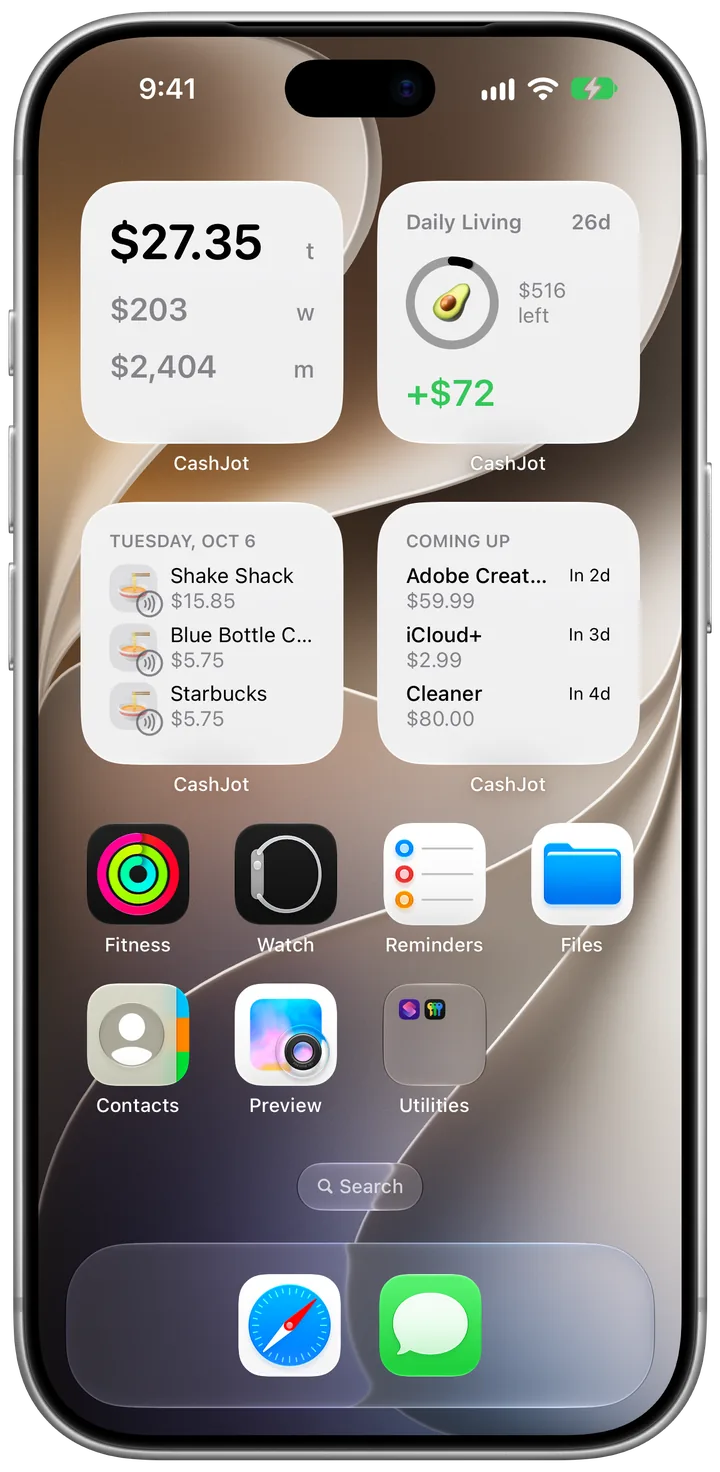
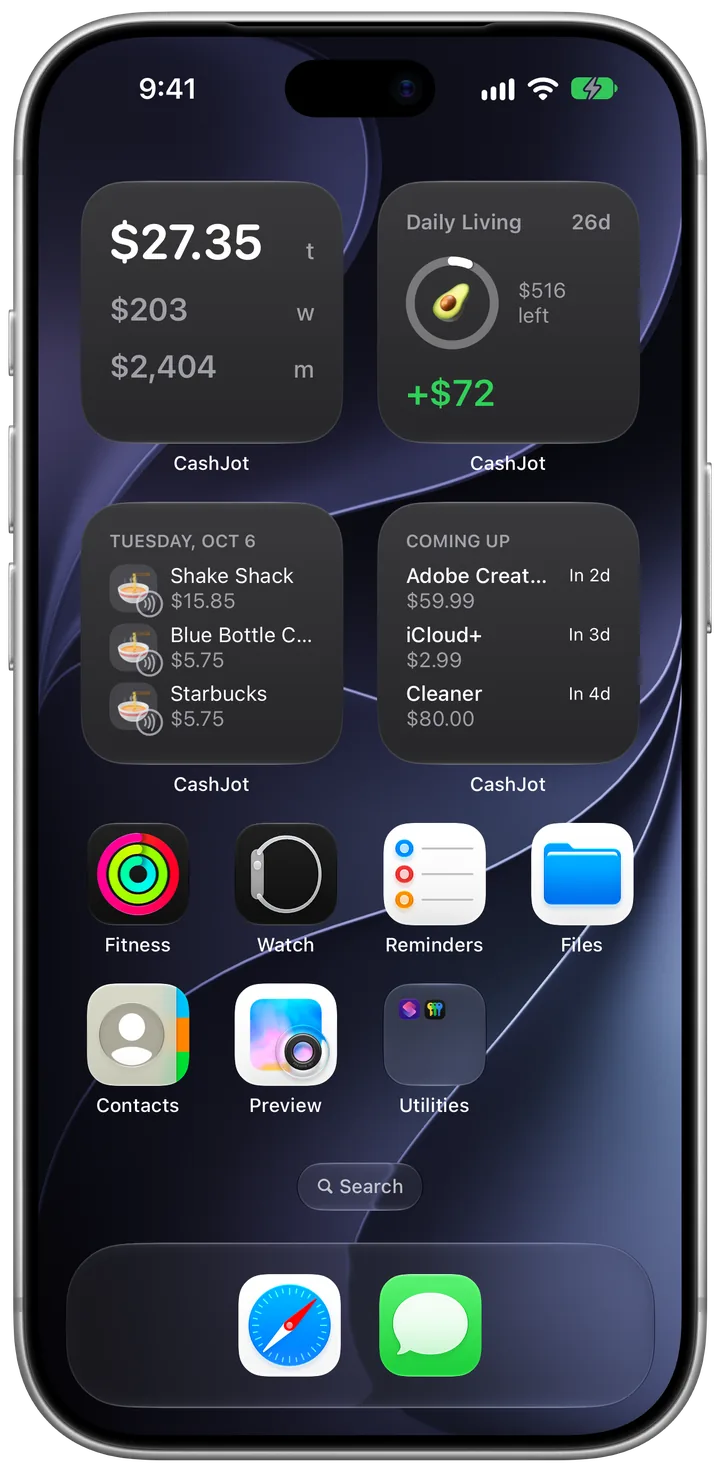
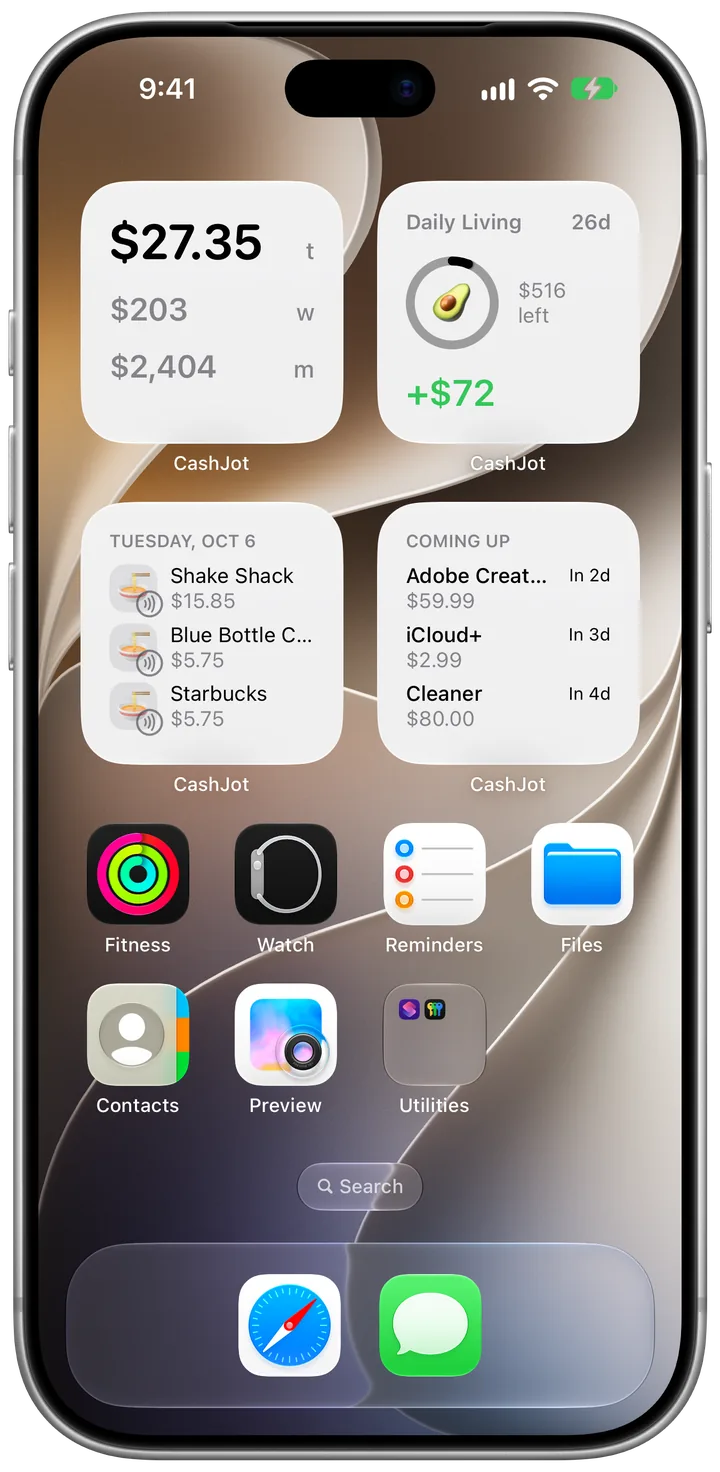
A widget on your Home Screen or Lock Screen does two quiet jobs: it reminds you what you've spent today before you buy the next thing, and it helps you spot a forgotten coffee while you still remember the price.
iOS doesn't ship with a built-in spending widget, so you add Home and Lock Screen spending widgets from an app like CashJot to keep today's total, budget pace, and upcoming bills in plain sight.
Keep each entry under two seconds#
The habit that lasts is typing the amount and tapping a category before you put your phone back in your pocket.
In CashJot, the app opens straight to the keypad: enter the number, tap a category, and save.
Merchant autocomplete and one-tap Favorites keep everyday logging under two seconds, and pairing iOS Back Tap or the Action button lets you open the keypad with a double-tap on the back of your phone.
Let in-store Apple Pay taps arrive on their own#
On iOS 18 and later, a personal Wallet automation in Apple's Shortcuts app can send every in-store Apple Pay tap straight to CashJot on your iPhone with no bank login. On the free plan, taps appear in Captures on the Log tab; with CashJot Plus, they log themselves automatically. Online orders and cash stay quick manual entries.
While Apple Wallet shows recent card payments, it keeps each card separate and never adds them up. Here is how Wallet history compares to a real expense tracker.
Count cash once#
No bank feed can see physical cash.
The one rule for cash: Log either the ATM withdrawal or the individual cash purchases as you spend the bills, never both.
Pick whichever matches how you use cash: log the ATM withdrawal as one lump sum if you rarely carry bills, or log each cash purchase at the counter and check your wallet balance when you forget a receipt.
Give trips and side projects their own ledger#
Dumping a two-week vacation into your everyday spending makes that month look wildly expensive and ruins your normal averages.
A separate Expense Group keeps trip spending out of your home numbers. With CashJot Plus, a trip group can log in foreign currencies and run a dated budget from your departure day to your flight home. (The free plan includes one Expense Group.)
The same separation works cleanly for side-hustle and freelance expenses or multi-currency trips.
Put recurring bills on a schedule#
Rent, utilities, and subscriptions hit on the same dates every month, so set them up once as recurring expenses and let the app count them on schedule. In CashJot, upcoming bills appear in grey on the Calendar until their due date arrives. The free plan supports up to three active recurring expenses; CashJot Plus removes the limit and adds bill reminders.
Keeping subscriptions and fixed bills on a schedule also lets you hide fixed bills from your daily widget so rent day doesn't drown out your everyday spending.
Keep it offline, account-free, and locked with Face ID#
An offline, no-account tracker never asks you to sign up and never stores your spending on a company server.
In CashJot, your entries stay on your iPhone and sync through your private iCloud, so logging works on a plane or in a basement subway station. You can also lock the app behind Face ID right from your iPhone Home Screen.
Four rules that keep daily logging easy#
Whichever tool you use, four small habits prevent burnout:
- Log just the amount and category. "$4.50, Coffee" is plenty. Save item notes and receipt photos for warranties or tax write-offs.
- Keep categories between 5 and 8. A short category list you actually use beats a 30-category setup you quit after ten days.
- Log before your phone goes back in your pocket. Small purchases vanish from memory by dinner time.
- Save repeat buys to Favorites. Morning coffee, bus fare, and regular lunch spots should take a single tap.
When you miss a few days, restart from today#
Everyone misses a week eventually: a busy trip, a sick week, or a crunch at work. Gaps don't kill a tracking habit; the dread of catching up does.
Trying to piece together two weeks of forgotten coffees from bank statements turns a two-second habit into homework.
The fix: Leave the blank days blank and log your next purchase today. A log with a one-week gap still tells you what this month is costing you; an app you are afraid to open tells you nothing.
A 7-day starter plan#
Build the reflex of logging before you try to cut your spending:
- Pick your tracker and keep 5 to 8 broad categories (like Food, Transit, Bills, Shopping, Fun).
- Add a spending widget to your Home Screen so today's total is always visible.
- Log every purchase at the counter for 7 days: amount, category, save.
- Don't try to spend less during week one. Just record what a normal week actually looks like.
- Check your weekly total on Day 7. In CashJot, the Spending tab breaks the month into weeks and shows your daily average. If you want a full month of data including bills and paydays, try our 30-day expense tracking challenge before setting a budget.
The complete setup, guide by guide#
Each piece of this iPhone setup has its own step-by-step guide:
Frequently asked questions#
What is the easiest way to track expenses?#
Log each purchase right when you pay using an app that only asks for the amount and a category.
On an iPhone, pairing a Home Screen widget with Apple Pay capture covers in-store card taps and keeps today's total where you can see it all day.
Do I need a budget to start tracking expenses?#
No. A simple list of what you spent and which category it went to answers "where is my money going?" all on its own.
Many people find that just seeing today's total on their Home Screen is enough to curb impulse buys without ever setting formal category limits.
What should I do if I miss several days of logging?#
Start again with today's next purchase and leave the missed days alone. Going back through old receipts and statements is the fastest way to burn out.
A record with a few blank days is still useful; a tracker you quit isn't.
Written by Pierre Teo, maker of CashJot.