
A log built for the small stuff that adds up
Favourites for the spends you repeat, widgets that open straight to the log form, Apple Pay taps logged from Wallet, and no modal to open or dismiss between entries.


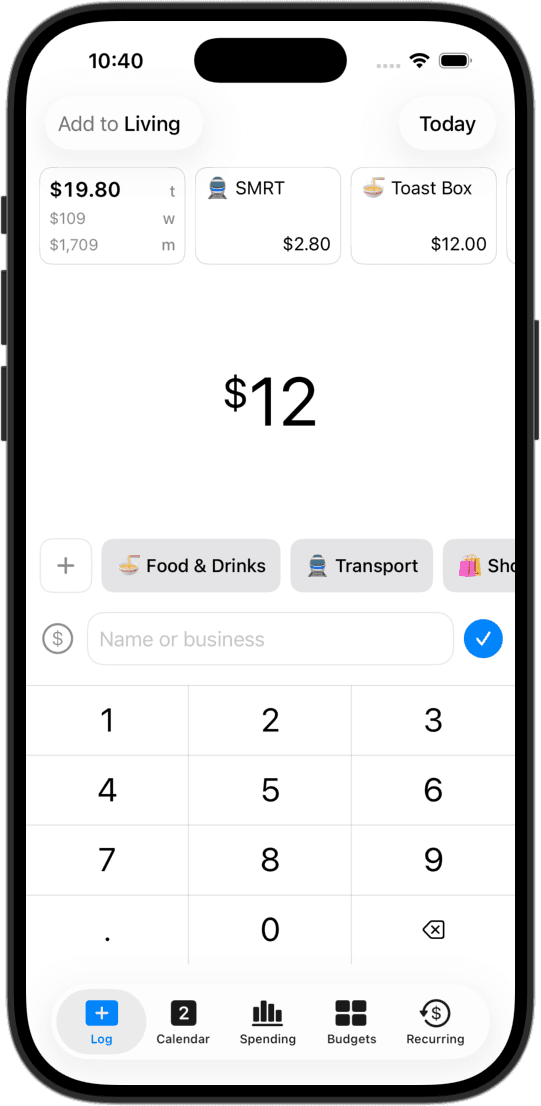
Favourites for the spends you repeat
The morning coffee, the same lunch, the weekly transit top-up. Favourite a transaction once and the Log tab's Favourites screen re-logs an identical entry in a tap.
No modal between entries
The Log tab opens straight to the entry form. No sheet to open or dismiss between entries. Type the amount, pick a tag, save, and you're already on the next blank form. Autocomplete suggests a note and tag from past entries, so the second coffee is faster than the first.
Widgets open straight to the log form
Lock screen and home screen widgets open straight to the Log tab, skipping the app launcher. Type the amount and tag, autocomplete fills the rest.
Apple Pay taps logged from Wallet
Set up the Wallet automation in Shortcuts, and each in-store tap fires a notification that logs the transaction with the amount, merchant, and card from Wallet. Captures that need review (currency mismatch, $0 hold) wait in the Captures view. Setup guide.
Spending on the lock screen
Today's spend and budget progress sit on the lock screen. Tap a widget to open the Log tab or the budgets view without unlocking first.
The approach
A lot of expense tracking falls apart on the small entries. A coffee, a transit tap, a quick lunch, three or four a day, every day. Small enough to forget by evening, just enough friction to skip in the moment. CashJot is shaped around making each of those entries low-cost enough to log.
Favourites cover the spends that repeat. Autocomplete fills in from your history. Widget shortcuts open the form without going through the app launcher. Apple Pay capture handles in-store cards on its own. None of these are big features on their own; together they keep the per-entry cost low whether you log on the spot or sit down to enter a batch later.
Frequently asked
What if I'd rather log a batch at the end of the day instead of as I go?
That works just as well. Favourites and autocomplete carry most of the weight either way, and the form resets after each save so the next entry is ready. Apple Pay capture is the only piece designed to happen at the moment of the tap; the rest works the same whether you log as you go or sit down to enter a batch later.
Does this capture Apple Pay automatically without setup?
No. There's a one-time Wallet automation in Shortcuts to set up, and multiple cards can be covered in the same automation. After that, in-store taps fire a notification that logs the transaction with the amount, merchant, and card from Wallet. The full walkthrough is in our Apple Pay guide.
What if I miss the notification?
The capture survives. Open the Log tab and tap the tray icon, or open Settings → Apple Pay → Captures.
Do widget taps fill in the amount?
No. Widget taps open the Log tab on an empty form so you can type the amount and tag. Only the Apple Pay capture notification opens the Log tab on a prefilled form.
Can I favourite a recurring bill?
Favourites are for one-tap re-logging of typical one-off spend, like the morning coffee or the same lunch. Recurring bills should be templates instead. They show up on schedule without you logging anything by hand.
Do I need CashJot Plus for all of this?
The Log tab, favourites, and the lock screen and home screen widgets are all available for free. Apple Pay capture is part of CashJot Plus.
Built for the coffee, the transit tap, the quick lunch.